
About This Article
This is how volunteers sign up to help out with your festivals. Here, we will cover the basics of getting a sign-up form up and running.
🔎Prerequisites
There are no perquisites, but article assumes you've set up some Time Slots and Festival Sections, which will be used later in the article.
Locating the Public Forms
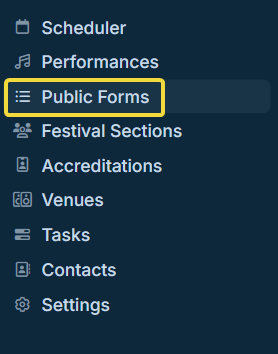
Click Public Forms under your festival's name in your sidebar to get started.
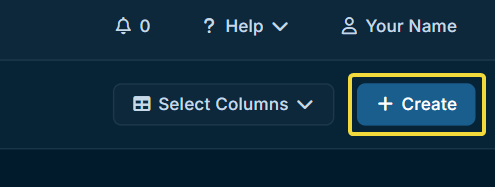
Then in the upper right of the area that opens up, click Create Public Form.
Setting Up the Form
Adding Some Basic Information
The first step is to fill out some basic information for the form. A good short name, in this case, is "Volunteers", so we'll go with that.
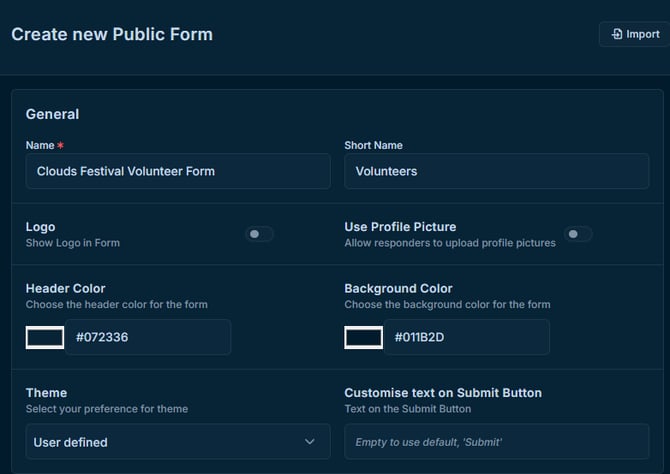
Short Name
The Short Name is the name that will be used in other internal pages of Crescat, like within connected Festival Sections.
Terms
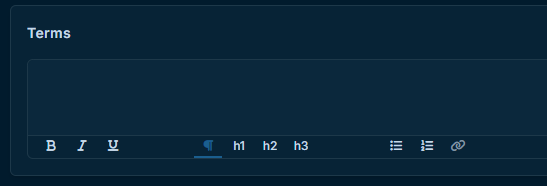
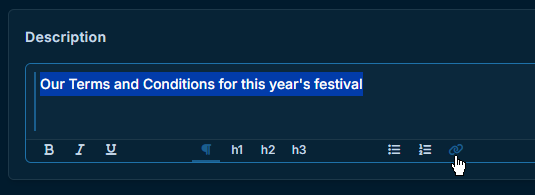
You can paste in your festival's terms and conditions under Terms.
Tip
You can also add a hyperlink by clicking the chain-link icon in the textbox's toolbar.
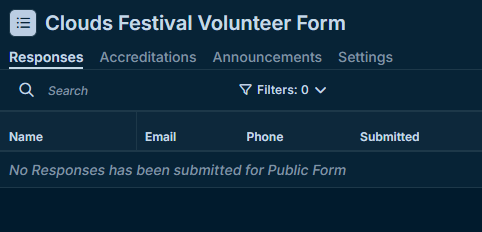
Once you click create, you will be taken to the responses page for the new form, which should be empty.
Adding Form Sections & Fields
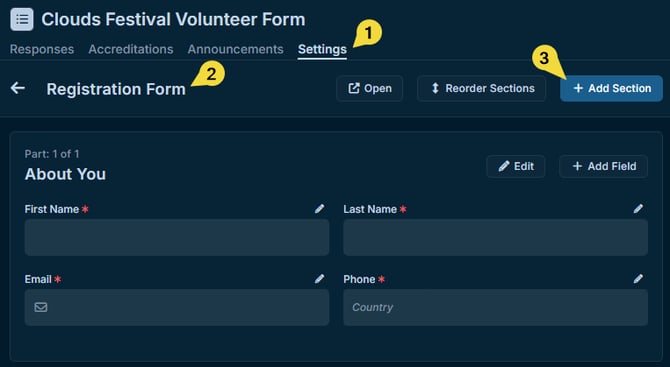
By default, the form only collects information about the volunteer's name, email, and telephone number. You can add additional sections by clicking the Settings tab, Registration Form, and then clicking on Add Section.
Note: This is where it's helpful to have made some Time Slots and Festival Sections.
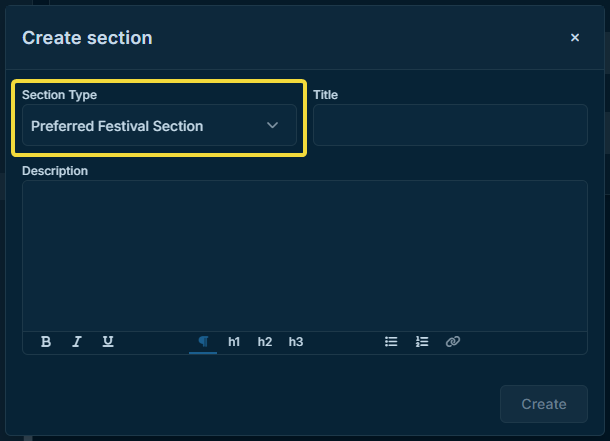
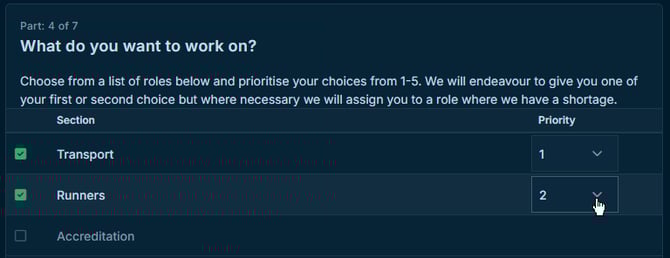
Some sections like this one will use resources set up in other places in the festival. For example, this Section Type will let the responder rank their preferred Festival Sections that are connected to the form.
Connecting Festival Sections
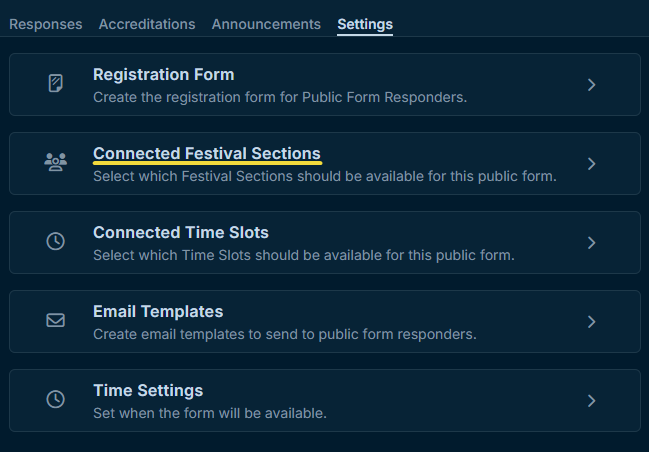
In the Settings Tab of the current Public Form, you'll see a few items that you can connect to the form. Click "Connected Festival Sections" to get started.
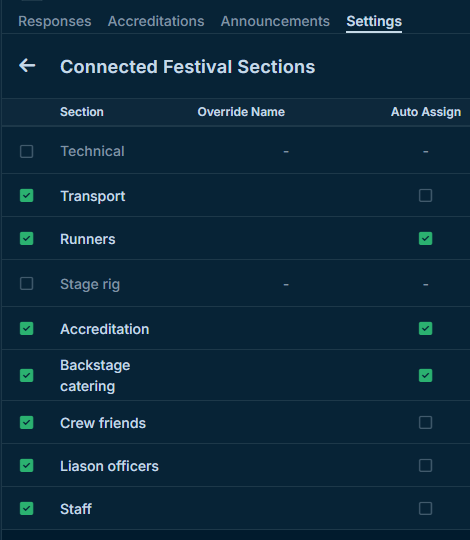
Then check off the sections you'd like to make available to the responders.
From the User's Perspective
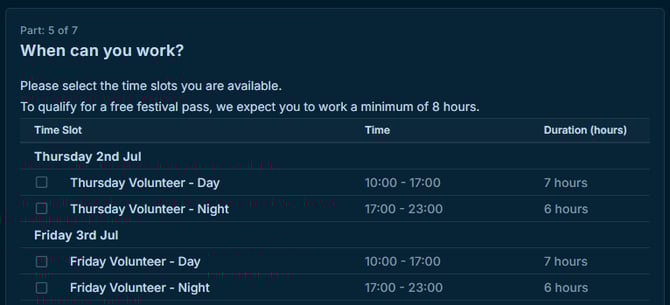
Adding time slots works the same way. Once added, the responder can check off all timeslots that are relevant for them.
From here, keep adding section types and fields until you are requesting all desired information from your Public Form responders.