About This Article
The People tab is found within an event's slide-out. It contains the names of the Groups, Teams, Contacts, and Companies involved in the event.
Contents
Locating the People Tab
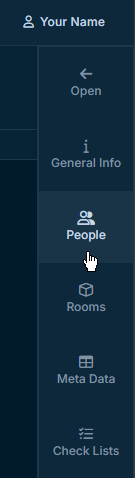 |
The People tab is located on the right side of an event page. Clicking it reveals its contents. |
Once it slides out, you'll get an overview of all the people connected with the event.
Missing the People Tab?
If you can't see the People tab, you may not have sufficient permissions to access it.
Your Organisation
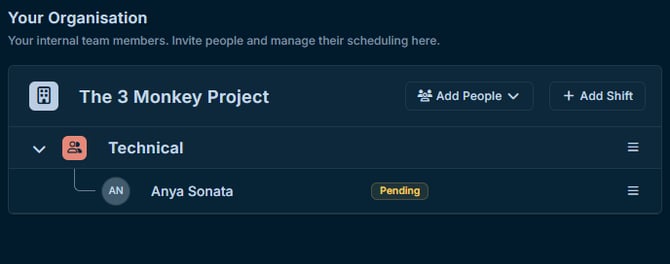
At the top, you'll find a list of members of your groups and teams that have been invited to the event.
Adding Your Members
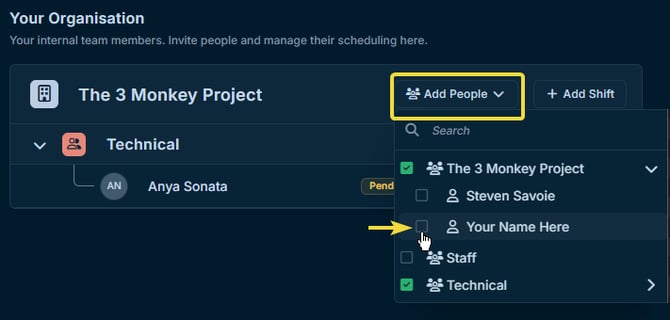
You can add Teams and Members from your organisation by clicking the Add People button.
Tip
With the Shifts module, you can also create shifts from here. Please contact us if you'd like to add the Shifts module to your account.
External Contacts & Companies
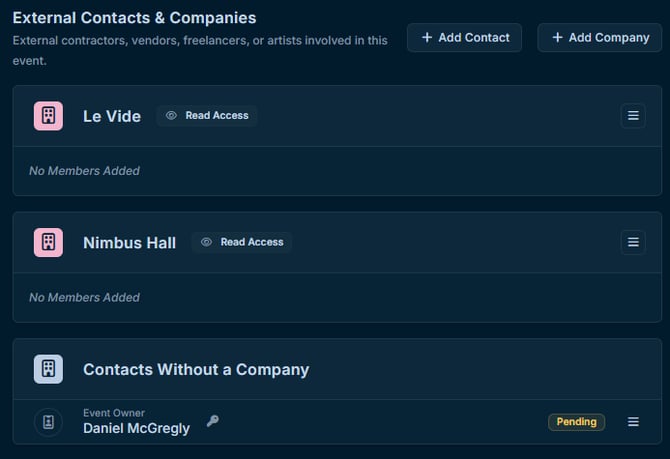
Lower down, you'll see the External Contacts and Companies section. Here you'll find people categorized by their company, according to your contacts. Any other groups invited to the event will also show up here, however, you can't invite groups to the event from here.
Note
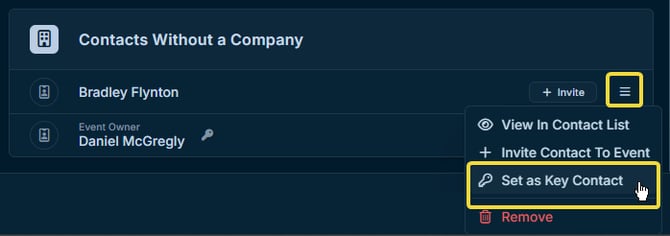
The Key Contact is also shown here under "Contacts Without a Company", and denoted with a key icon.

Adding Contacts and Companies
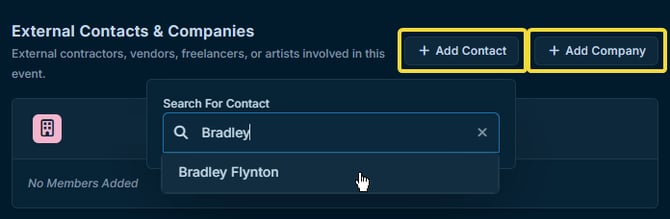
You can add any additional contacts or companies from your contact list by clicking Add Contact or Add Company at the top of the External Contacts & Companies section.
Note
If the Contact isn't invited to the event, they will not show up on the members page of the event. If the contact isn't a key contact or event member, they will only be visible for your group, and only within the event's slide-out.
To set the contact as a key contact, you may use the menu on the right of the contact's name.