
About This Article
Events start practically building themselves when you unlock Templates in Crescat. This article will show you how to add templates directly to an event.
Templates can also be added to an event type:
Adding a Timeline Template to an Event
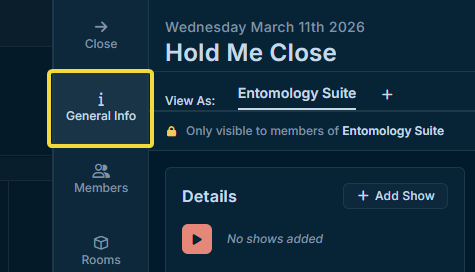
Open an event's slide-out panel to the Generial Info tab.
From the Timeline area, click the dropdown arrow next to Add Assignment.
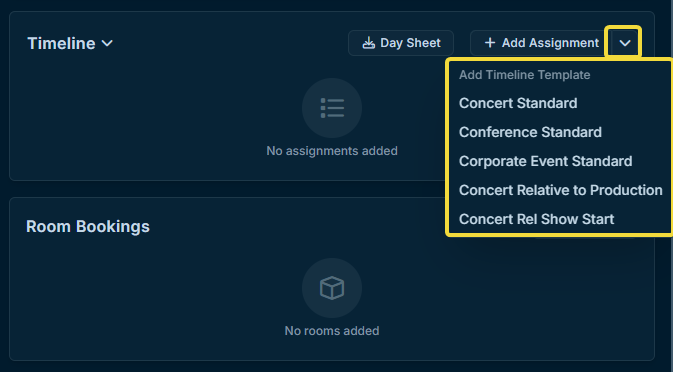
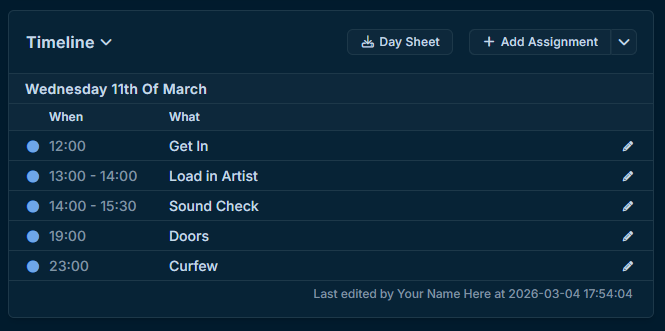
Select a template from the dropdown and confirm the decision. The timeline template will then be added to the event's timeline.
Adding Other Types
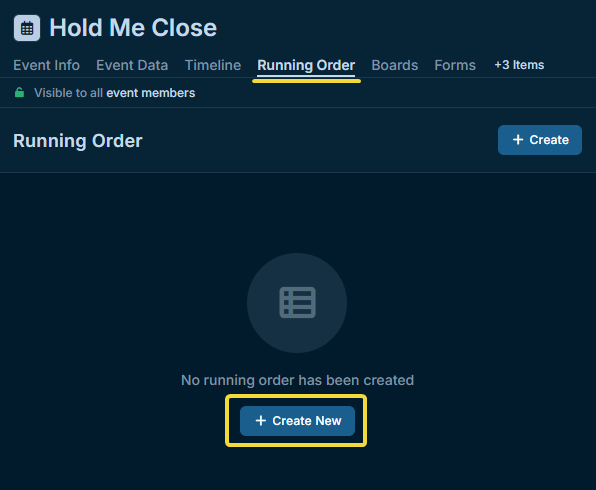
Wherever these templates can be used, adding them will usually be the main action. Let's take the Running Order as an example.
Clicking "Create" or "Create New" in an event's Running Order tab will open up the Template selector.
Adding templates will generally follow the same concept. Templates will be offered when using the main action for creating Checklists, etc.
All the best, team Crescat.